MQTT
The connection to external devices can be made via MQTT. For each runtime the connection is configured. After creating a Runtime created connection settings are automatically displayed. You can also open them manually by navigating to the runtimes in the project, hovering over them and selecting the icon for connections .
Create new MQTT connection
logiccloud offers its own integrated MQTT broker through which you can create your connections. However, you can also connect your own broker.
logiccloud MQTT broker
To do this, click on the icon for Add logiccloud MQTT connection. In the dialog window you can enter the name Connection name, the client ID Client ID and the description Connection description .
The Reconnect period specifies how quickly a new connection is attempted when a connection is lost. Clean means that with each new connection a clean session is started without accessing previous value changes in the broker.
Protocol, Hostname and Port are automatically generated and can be used to connect to the broker.
The client ID should always be unique for each connection and device so that
After you have created the connection, select it in the outline tree. You will see the generated user name User name and password Password. You can use this to log in your Devices.
Install the displayed certificates on your devices to encrypt the connection.
If you use the logiccloud MQTT Broker, you should install the certificates on your devices so that no security risk arises from the encrypted connection.
Own MQTT broker
The procedure is the same as when using the logiccloud MQTT broker. Click on the icon Add custom MQTT connection and fill in all the information. In addition, however, the Protocol, the Hostname, the Port as well as the authentication via User name, Password and, if necessary, certificates for the encryption must be entered.
The client ID should always be unique for each connection and each device, otherwise the broker may terminate the connection.
Define MQTT Payload
The MQTT payload maps the MQTT messages to the logiccloud access variables.
For this purpose, a new payload must be created within the previously created connection via the icon Add payload .
To do this, specify the name Payload name and the description Payload description . The format type can be Raw or JSON .
RAW Payload
RAW payloads mean that the entire content of a message to the broker contains the data to be processed by logiccloud. So that individual parts of the payload can be mapped, the JSON format should be selected.
JSON Payload
For the JSON payload, you still need to define the content of the payload so that it can be understood by logiccloud. In the selection fields you will find ready-made templates to decrypt the payload. You can use these, but also define your own structures.
The formats for reading and writing must be identical so that the variables can be processed accordingly by logiccloud. This means that the structure of the payload to be read and the payload to be written must be identical. If you need different formats for different variables, you can define several different payloads and assign them to the variables.
Read values
$[data]
// sample payload
{
    "data": 11.245
}

$[value]
// sample payload
{
    "value": 123.678
}

$[data][##tag##]
// sample payload
{
    "data": {
        "tagName": 34.567
    }
}
Write values
{"data":##v##}
// sample payload
{
    "data": 11.245
}

{"name": "##tag##", "value":##v##}
// sample payload
{
    "value": 123.678
}

{"data": {"##tag##": ##v##}
// sample payload
{
    "data": {
        "tagName": 34.567
    }
}
Map MQTT variables
Within the payload you can map the variables from your logiccloud projects with the MQTT tags.
To do this, create a new mapping via the + icon. To do this, select the variable , insert the tag name from the MQTT payload, select the data type and the topic. The first part of the topic is always predefined and consists of the Runtime ID and the MQTT Connection. The rest of the MQTT topic can be freely defined.
The data types in MQTT are slightly different from the data types in Structured Text. Therefore, you should select the MQTT data type that corresponds to the data type of ST.
After you have created the mappings, you can start your runtime.
Debugging with the MQTT Explorer
You can debug your MQTT connection with the MQTT Explorer . To do this, start the MQTT Explorer and create a new connection.
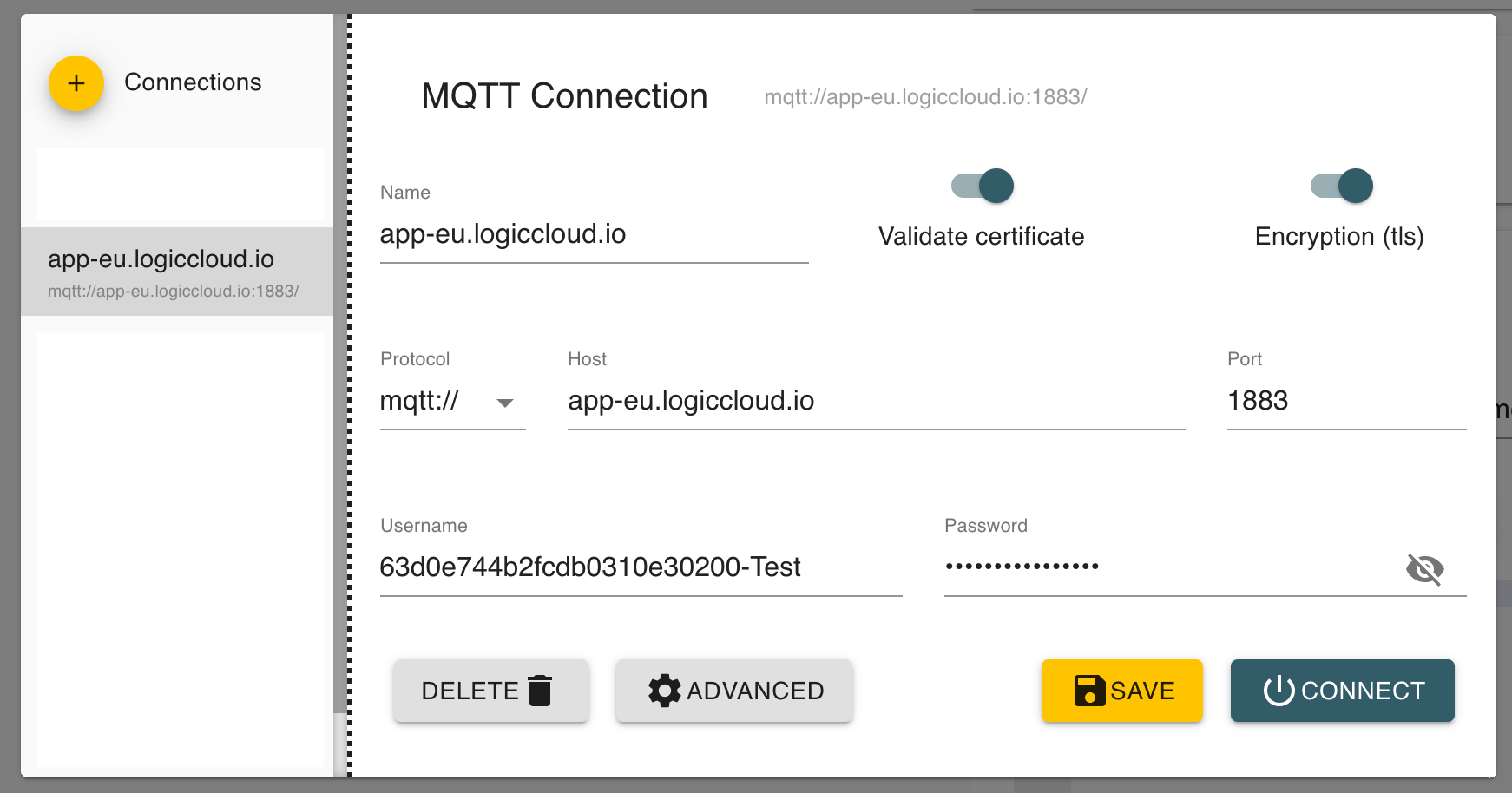
Namecan be freely assignedHost,Port,Username,Passwordfrom the MQTT settings of the runtime.Validate certificateandEncryption (tls)must be on .
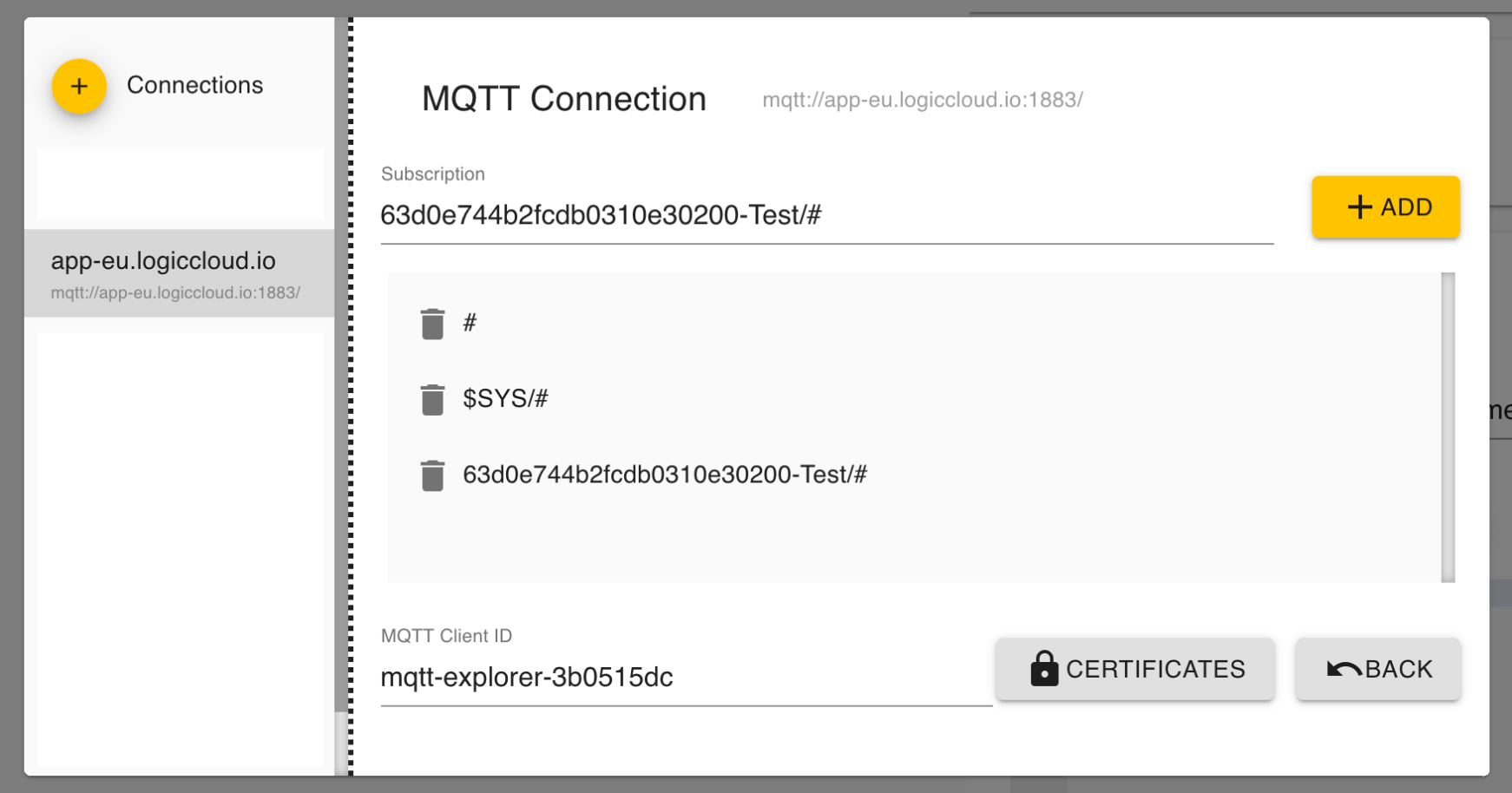
If you use the logiccloud MQTT broker: At Advanced you still need to add the Topic. This can be found in the payload settings. This also corresponds to the username. It is important to add /# at the end so that all messages within the topic and subtopics can be seen.
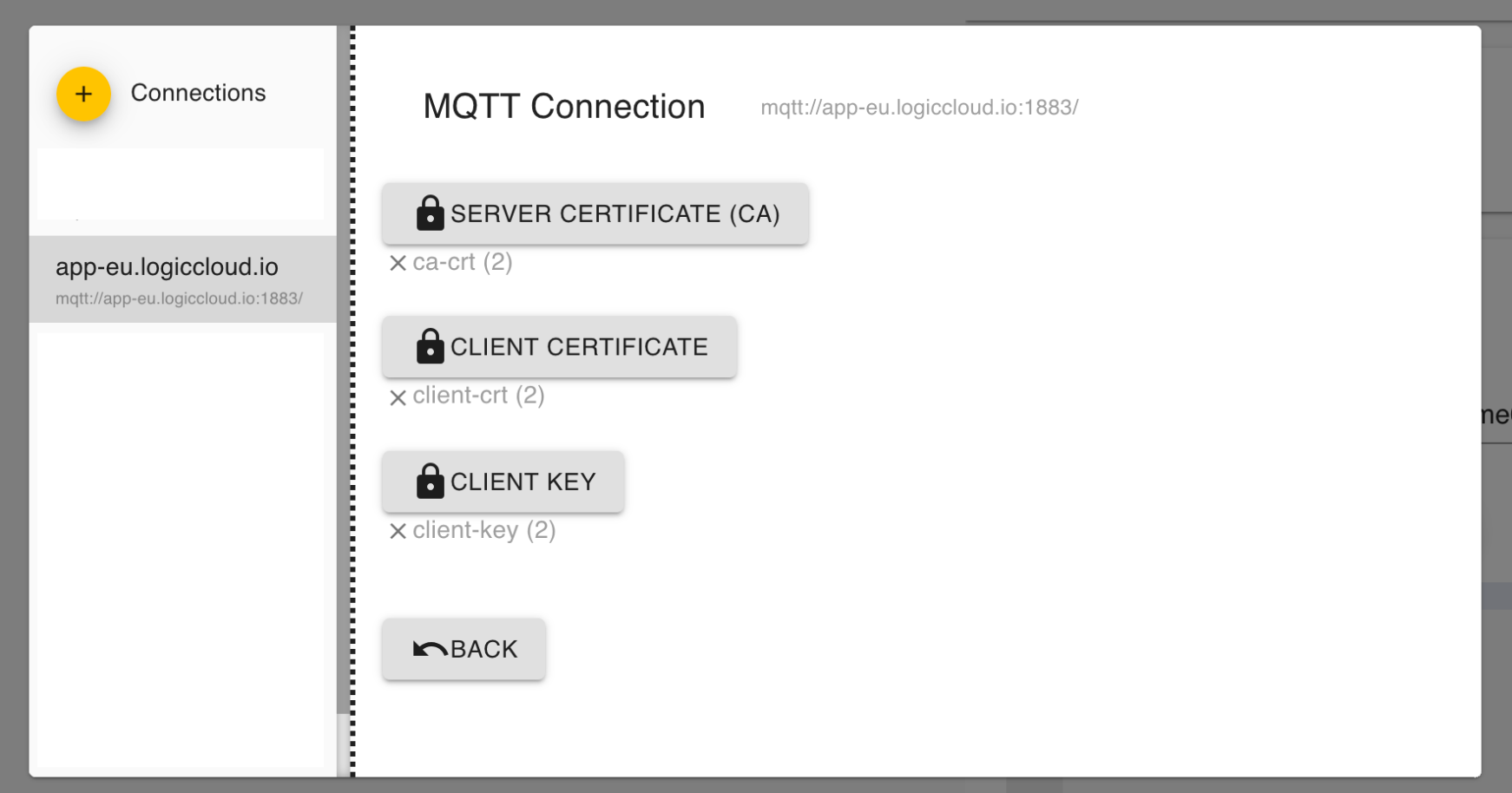
Finally, the certificates from the MQTT settings of the runtime must be included.
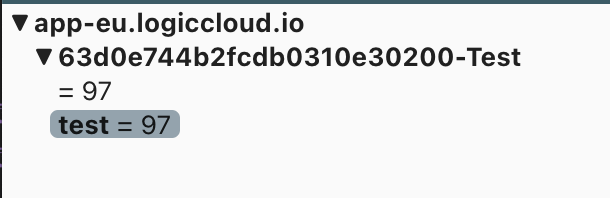
Now you can make the settings Save and Connect . All messages that are within the topic are now displayed.